Showing posts with label how to. Show all posts

Card of the Week #6

Wednesday, August 29, 2012

Today is one of my favorite posts’ days. Sometimes I get so busy that I don’t have time to do anything other than finish orders, and create new items for my website. So, I created this ‘Card of the week’ series so that I can take a break from my business and simply create for the fun of it—and to keep my sanity. For some reason making cards makes me feel incredibly calm; and, I guess that’s why I love papercrafting as much as I do.

I made this card using the NEW Lawn Fawn stamp set ‘SweetChristmas’. It’s so cute! And it’s easy to use. There are so many possibilities with this set that sometimes I just stare at it and imagine all the things I can make with them. Now here’s how I made the card: 


Thanks for stopping by to check out another ‘Card of the Week’. Happy crafting! 

How It's Made--Baked With Love Tags Series # 1

Monday, July 2, 2012


Hello again! I'm happy to start a new series of posts' here on my blog. It's my first series and I'm naming it 'How it's Made'. I usually have D.I.Y. posts' and that's all find and dandy-- but sometimes I wonder if anyone ever wants to know how I make the products I offer on my page. The item I'm going to showcase in my first 'How it's made' series is a set of tags I just created this weekend. They're new, and they'll be added to my Etsy page in due time--but enough talk, let's get this show on the road!


The tools I use for this project are as follows:

-Plus One stamp set by Lawn Fawn

-Harold's ABCs stamp set by Lawn Fawn

-Heart shape stamp (small)

-Cut tags

-Markers

-Black Ink

-Red Chalk Ink

-Bakers Twine


Before I upload a flood of images, let me just say that I've recently stumbled upon the Lawn Fawn website through Google; and I'm so happy that I did! They have the cutest stamps I've ever laid eyes on. Their stamps have completely renewed my love for papercrafting. You can find them here.

Now, let's begin!

Here are pictures of the cute stamp sets--you can see for yourself how adorable they are.


What I did first was cut out some tags with my Cricut. Then used the 'bun in the oven' stamp from the Plus One stamp collection, and stamped my image on the 2 inch tag. Next I used the Harold's ABCs set to create the sweet sentiment, 'Baked with' and then used a heart stamp for the "love"; and I stamped the heart in red ink for a bit of contrast.


Next I used my Prismacolor Art markers to color in the image. I've found that most crafters prefer the use of Copic markers but let's face it, they're ultra expensive and I have to use the only tools that are available to me. This is sorta off topic but I've had these markers for 10+ years and I've never even had a purpose for them until I started buying Lawn Fawn stamps. I'm so happy that I finally have a reason to use them now!


Once I've completed coloring in the image I simply attached the bakers twine and then I'm finished!


Here is the finished product:


Thanks again for stopping by, and I look forward to more 'How it's Made' by Unify! Till next time my friends.

Cute Things You Can Make Without a Cricut—Using Affordable Tools

Wednesday, April 4, 2012

    Every once in a while I’ll have friends over for a visit, and they (and their children) are always immediately drawn to my craft table. I’m always willing to answer any questions they may have about what certain things are, how they work, and how much certain tools cost. But one of the most common statements I get from visitors is, “I wish I could make these cards, or these cupcakes toppers, but I don’t have a Cricut.” Every single time I heart that I’m not convinced, lol. I always say, “You don’t NEED a Cricut to do most of the things I make.” Sure the Cricut can make tons of things—but to be honest most of the time I only use my Cricut for printing out tags, and making Hello Kitty items. I love being hands on with every step of my craft—the items I create with tools and my hands always seem to come out better and I feel that they have more value.
What are those tools you ask? They’re craft punches! –Craft punches, high quality card stock, stamps, ink, glue, ribbon, imagination, love, etc. Here are some of the craft punches I use to create cupcake toppers, tags, cards, and embellishments.
Once I’ve punched out the shape I want, I just use some stamps to decorate the paper and these are some of the items I’ve made using these tools (without a Cricut).


Therefore, you can create some of these too. Perhaps with every paycheck you can buy a craft punch, some paper (when it’s on sale), and other needed tools—to start creating and sharing these things with the world.

How to Make Easy & Affordable Limeade

Wednesday, March 7, 2012

Hi everyone! I’m excited to share this little recipe with you. It’s a great drink to make when you have unexpected guests’ at your house and you need to serve something delicious and quick. You can even make this drink to go with your lunch or dinner—that’s what I usually do. My family loves it, and I’m sure yours will too.
I’m going to explain how I make it to the taste I prefer; but by all means use the steps I’m providing for you and turn the limeade into your own. The taste that I prefer is as follows! (Enjoy):
What you’ll need: 
1.       Blender
2.       Zester
3.       Fine mesh strainer
4.       Knife
5.       2 large limes
6.       1 ½ tbs. of lime zest
7.       1 ¼ cup of granulated sugar
8.       5 ¼ cup of water
Makes a little over a liter, prep time: 10-15 minutes.
Step 1: What I do first is zest my limes—about 1 ½ tbs.
Step 2: Cut both your limes in half like so:
Step 3:  Cut off the skin (being careful not to cut off the pulp).
Step 4: Add your cut limes, 1 cup of water, and ¼ cup of sugar to the blender and mix.

Step 5: Once blended, place your strainer over a bowl and pour the contents into your bowl, than you are left with the wonderful juice.


Step 6: From this point I simply add the rest of the water, sugar(4 ¼ cups water/1 cup sugar)and lime zest, but I add the water one cup at a time, tasting each time to make sure the flavor is where I want it to be. However, you can add as much or as little water and sugar as you like. Once you’ve got the 2 limes, 1 cup of water, and ¼ cup of sugar, you can add as much water or sugar as you like to taste.
Once you’ve finished—serve and enjoy! Cheers!


Making Flyers for your Etsy Page using Microsoft Paint & Photoshop

Friday, October 21, 2011

Lately I’ve been having some trouble getting traffic on my new website, and I decided to revert to a traditional way of spreading the word about my website—flyers! I’m not a professional when it comes to making flyers; therefore, I used the only tools I had on my computer to create a clean, simple, and organized flyer using Microsoft Paint & Photoshop. Now, I’m sure I could have done the entire flyer on Paint, but I used Photoshop to arrange all my text and images because their features are a bit more convenient. 

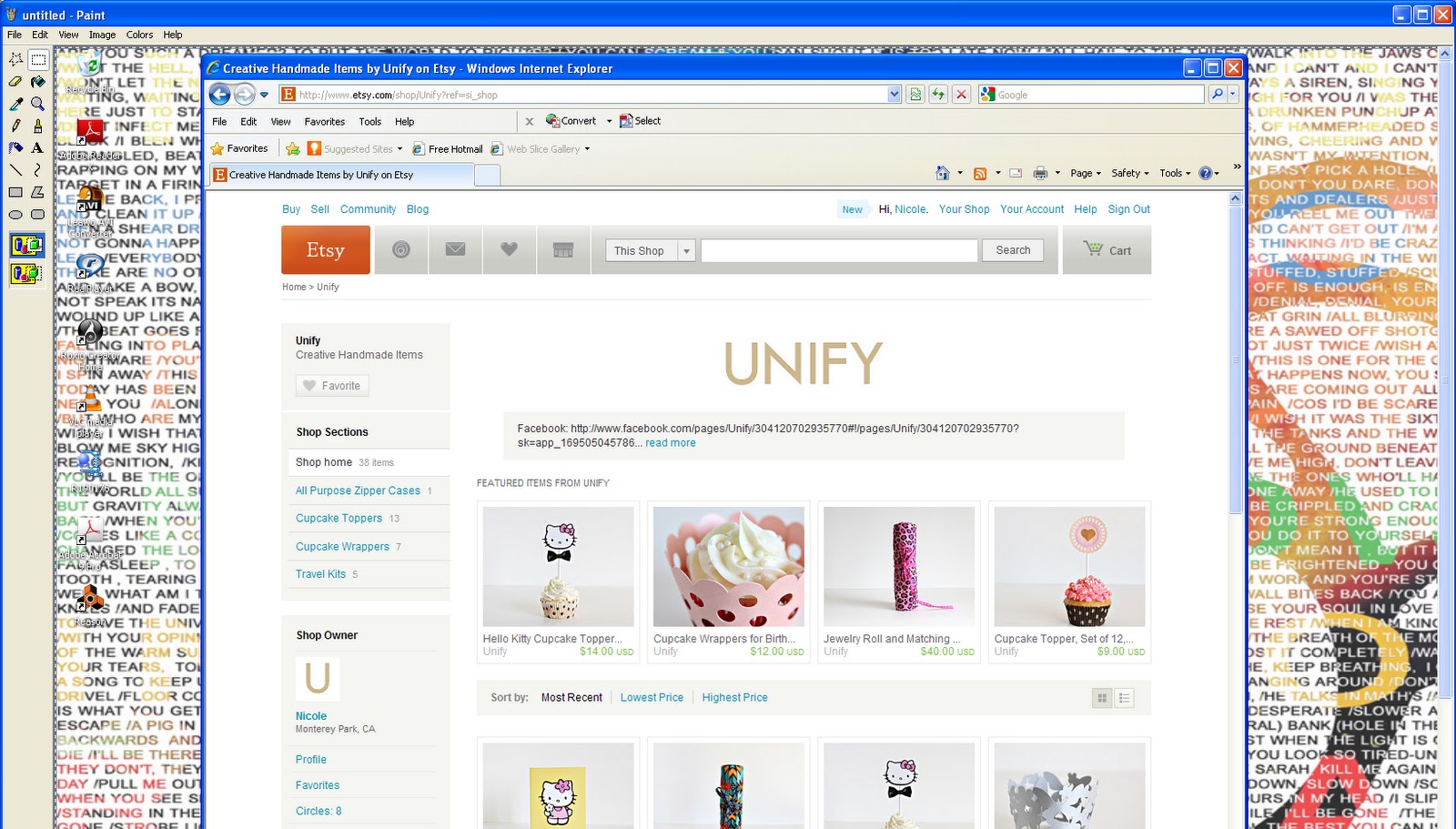
If you take a look at the flyer I’ve created you’ll notice I used my Etsy images—titles, prices, and all. Some of you may be wondering how I did that, and others might already know exactly what I did. Well, I took full advantage of my ‘Print Screen’ key (located on my keyboard), and became best friends with it. Here’s how I did it:

Go to your Etsy page, and use your ‘Featured Items’. They are all in a perfectly aligned row, and they would make for a great banner! To do this: press your ‘Print Screen’ or Prt Scr’ key. Next click your ‘Start’ button—located on the bottom left hand side of your screen.  Then click, ‘All Programs’, then click ‘Accessories’ and lastly go ahead and click on your ‘Paint’ program.

Once the program is ready to go, click on ‘edit’, and then click ‘Paste’. You should see a print screen of your entire screen.


Now all you need to do is crop the image you would like to use. To do this: simply click on the crop feature.


Then crop the image you would like to use.


Once you have cropped the desired image right click on that cropped image—then click ‘cut’. Next, you’ll want to is get  cropped image by itself; and what I do is click ‘File’, then ‘New’ (when it asks’ if I want to save I click ‘no’). Next, click ‘edit’ once again, and then click ‘Paste’. At this point only the image you’ve selected and cropped should appear. Then you can save and repeat for all the other images. Lastly, when all the images you need for your flyer have been saved you can use Photoshop to arrange all your images and text. Also remember to start with a new file that is the same exact size as standard printing paper (8 ½” x 11”).

What I also like to do is keep my Facebook fans up to date on what is going on with my website, and any time one of the items in my website is treasured I’ll share that treasury image with them on my page. The ‘prt Scr’ button works so well for sharing treasuries on websites:

I hope that this brief tutorial has inspired you to create your own flyers. I would advise taking some time out of your busy day to familiarize yourself with these basic programs. When running your own business it’s an added bonus to be able to do these types of things for yourself—in order to save some money.
Proudly designed by | mlekoshiPlayground |